Choosing between exFAT vs NTFS can be confusing, especially when formatting a USB flash drive, external hard drive, SSD, or memory card. Both file systems are widely used, but they are designed for different purposes. Selecting the wrong one can affect compatibility, performance, security, and file management.
If you’ve ever seen formatting options in Windows and wondered whether to choose exFAT or NTFS, you’re not alone. The best choice depends on how you plan to use your storage device. In this guide, you’ll learn the differences between exFAT and NTFS, their advantages and disadvantages, compatibility, performance, and which one is best for your needs.
Quick Answer
- exFAT is best for cross platform compatibility and portable storage devices.
- NTFS is best for Windows systems, security features, and internal drives.
Simple rule:
- Use exFAT for drives shared between Windows and Mac.
- Use NTFS for Windows only storage and advanced features.
What Is exFAT?
exFAT stands for Extended File Allocation Table.
Microsoft developed exFAT as a modern file system for flash storage and large removable drives.
Key Features of exFAT
- Supports very large files
- Supports large storage devices
- Works across multiple operating systems
- Optimized for flash drives and SD cards
- Lightweight structure
Common Uses of exFAT
- USB flash drives
- External SSDs
- Memory cards
- Cameras
- Gaming consoles
What Is NTFS?
NTFS stands for New Technology File System.
NTFS is the primary file system used by Windows for internal storage devices.
Key Features of NTFS
- File permissions
- Encryption support
- Compression
- Journaling
- Better reliability
- Advanced security controls
Common Uses of NTFS
- Windows system drives
- Internal SSDs
- Internal hard drives
- Business computers
- Enterprise storage
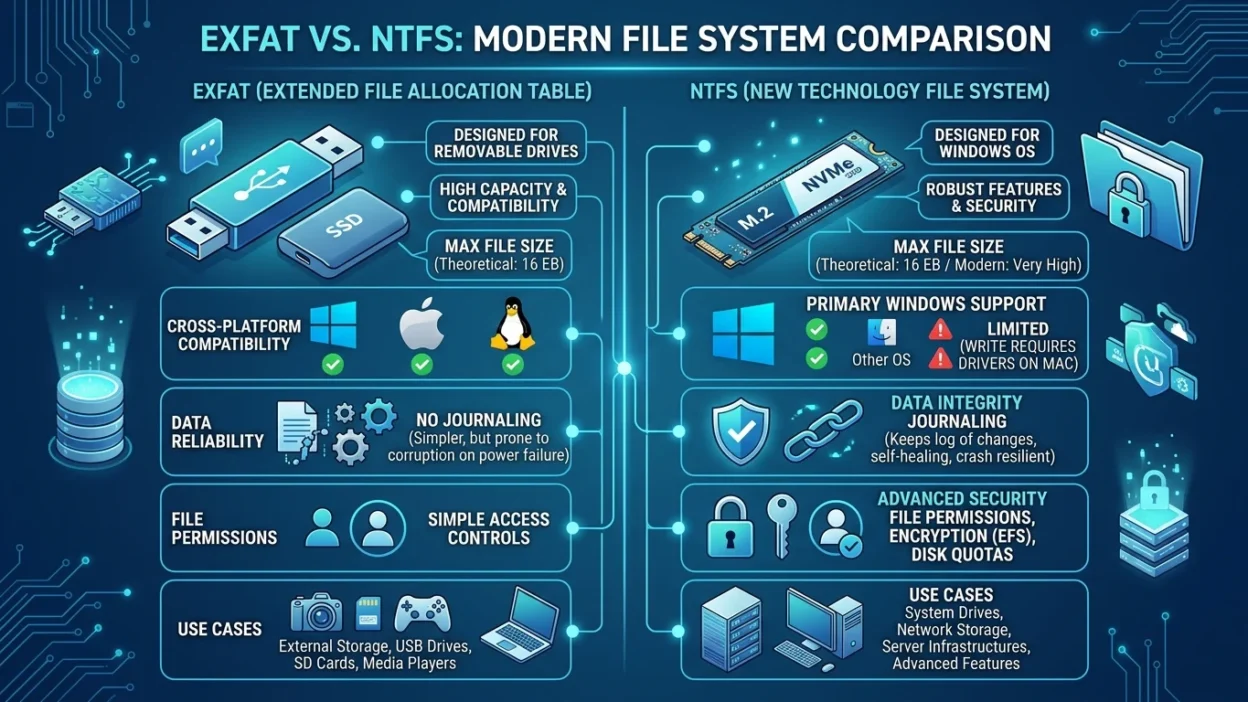
exFAT vs NTFS Comparison Table
| Feature | exFAT | NTFS |
|---|---|---|
| Windows Support | Excellent | Excellent |
| macOS Support | Read and Write | Read Only by Default |
| Linux Support | Good | Good |
| Security Features | Minimal | Advanced |
| File Permissions | No | Yes |
| Encryption | No | Yes |
| Journaling | No | Yes |
| External Drives | Excellent | Good |
| Internal Windows Drives | Good | Excellent |
Compatibility Comparison
Compatibility is one of the biggest differences between exFAT and NTFS.
exFAT Compatibility
Works well with:
- Windows
- macOS
- Linux
- Cameras
- TVs
- Gaming consoles
This makes exFAT a popular choice for portable drives.
NTFS Compatibility
Works best with:
- Windows PCs
- Windows laptops
- Windows servers
macOS can read NTFS drives by default but generally cannot write to them without additional software.
File Size Limits
Many people choose exFAT because of its support for large files.
exFAT
Supports:
- Extremely large files
- Very large partitions
NTFS
Also supports:
- Very large files
- Massive storage volumes
For modern users, both file systems easily handle large videos, backups, and games.
Security Features
Security is where NTFS clearly stands out.
NTFS Security Advantages
NTFS supports:
- User permissions
- Access control
- Encryption
- File ownership
- Audit logging
exFAT Security
exFAT focuses on simplicity and compatibility rather than security.
It lacks many advanced protection features.
Performance Comparison
exFAT Performance
Often performs well on:
- USB drives
- Memory cards
- Portable SSDs
Its lightweight design can reduce overhead.
NTFS Performance
Typically offers:
- Better reliability
- Efficient handling of large numbers of files
- Strong performance on Windows systems
Performance differences are usually small for everyday users.
Reliability and Data Protection
NTFS Journaling
One major NTFS advantage is journaling.
Journaling helps:
- Recover from crashes
- Reduce corruption risks
- Improve file system integrity
exFAT
Does not include journaling.
This simplicity improves compatibility but can reduce protection during unexpected power failures.
Best File System for USB Drives
Choose exFAT If
You need:
- Windows and Mac compatibility
- Portable storage
- Easy file sharing
- External flash drives
Most users choose exFAT for USB devices.
Best File System for Windows Internal Drives
Choose NTFS If
You need:
- Security
- Reliability
- Permissions
- Windows operating system installation
NTFS remains the standard choice for Windows system drives.
exFAT vs NTFS for Gaming
exFAT
Useful for:
- Sharing game files
- External storage compatibility
NTFS
Often preferred for:
- Windows game installations
- High performance PC gaming
- Steam libraries on Windows
exFAT vs NTFS for External Hard Drives
exFAT Advantages
- Easier sharing between devices
- Better Mac compatibility
- Plug and play flexibility
NTFS Advantages
- Better security
- Stronger reliability
- More advanced file management
Common Mistakes People Make
Mistake 1: Using NTFS for Mac Shared Drives
This can create write access limitations on macOS.
Mistake 2: Using exFAT for Windows System Drives
NTFS is much better suited for operating system installations.
Mistake 3: Ignoring Security Requirements
Business users often need NTFS security features.
Mistake 4: Choosing Compatibility When Security Is Needed
Always consider how the drive will be used.
exFAT vs NTFS for Mac Users
exFAT
Best choice for:
- Mac and Windows sharing
- External drives
- Portable storage
NTFS
Useful mostly when working primarily with Windows systems.
American vs International Usage
The file systems themselves are identical worldwide.
However:
- NTFS is commonly used on Windows devices globally.
- exFAT is especially popular for removable storage and cross platform environments.
Which Should You Choose?
Choose exFAT If You Need
- Windows and Mac compatibility
- Portable storage devices
- External SSDs
- USB flash drives
- Large media files
Choose NTFS If You Need
- Windows system drives
- Security features
- File permissions
- Data protection
- Business environments
FAQs
1. What is the main difference between exFAT and NTFS?
exFAT focuses on compatibility, while NTFS focuses on security and advanced Windows features.
2. Which is better for USB drives?
exFAT is usually the better choice for portable USB drives.
3. Can Mac write to NTFS drives?
Not by default. macOS typically reads NTFS but does not fully support writing without additional tools.
4. Is exFAT faster than NTFS?
Performance depends on usage, but differences are often minor for typical users.
5. Which file system is more secure?
NTFS is significantly more secure due to permissions and encryption support.
6. Should I use NTFS for an external hard drive?
If you only use Windows, NTFS is often a good choice.
7. Is exFAT compatible with Windows and Mac?
Yes. exFAT supports both operating systems very well.
8. Which file system should I use for a Windows installation drive?
NTFS is the standard choice.
Final Summary
The debate around exFAT vs NTFS comes down to compatibility versus advanced features. exFAT is ideal for portable drives, flash storage, and devices that need to work seamlessly across Windows and macOS. NTFS, on the other hand, provides stronger security, reliability, permissions, and system level features that make it the preferred file system for Windows installations and internal drives.
Choosing the right file system depends entirely on how you plan to use your storage device. Understanding the strengths of each option helps ensure better performance, compatibility, and long term usability.
Actionable Takeaway
Before formatting your drive, ask yourself:
- Will I use this drive on both Windows and Mac? → Choose exFAT
- Will I use this drive mainly with Windows and need security features? → Choose NTFS
Making the right choice now can save you compatibility and data management headaches later.